
Managing Webhook Secrets
A Webhook Secret is the key Asleep uses to sign the webhook requests it sends. The receiving side can verify the request signature with the issued secret to confirm the authenticity and integrity of the request.
Dashboard URL
The secret is shown only once, at the time of issuanceOnce you close the issuance screen, you cannot view the secret value again.
Store it in a safe place (secret manager, environment variables, etc.) immediately after issuance. If you lose it, you must issue a new one.
Secret States
The meaning of each state shown in the list is as follows.
| State | Meaning | Included in signature |
|---|---|---|
ACTIVE | Active state; used to sign all outgoing webhook requests. | ✅ |
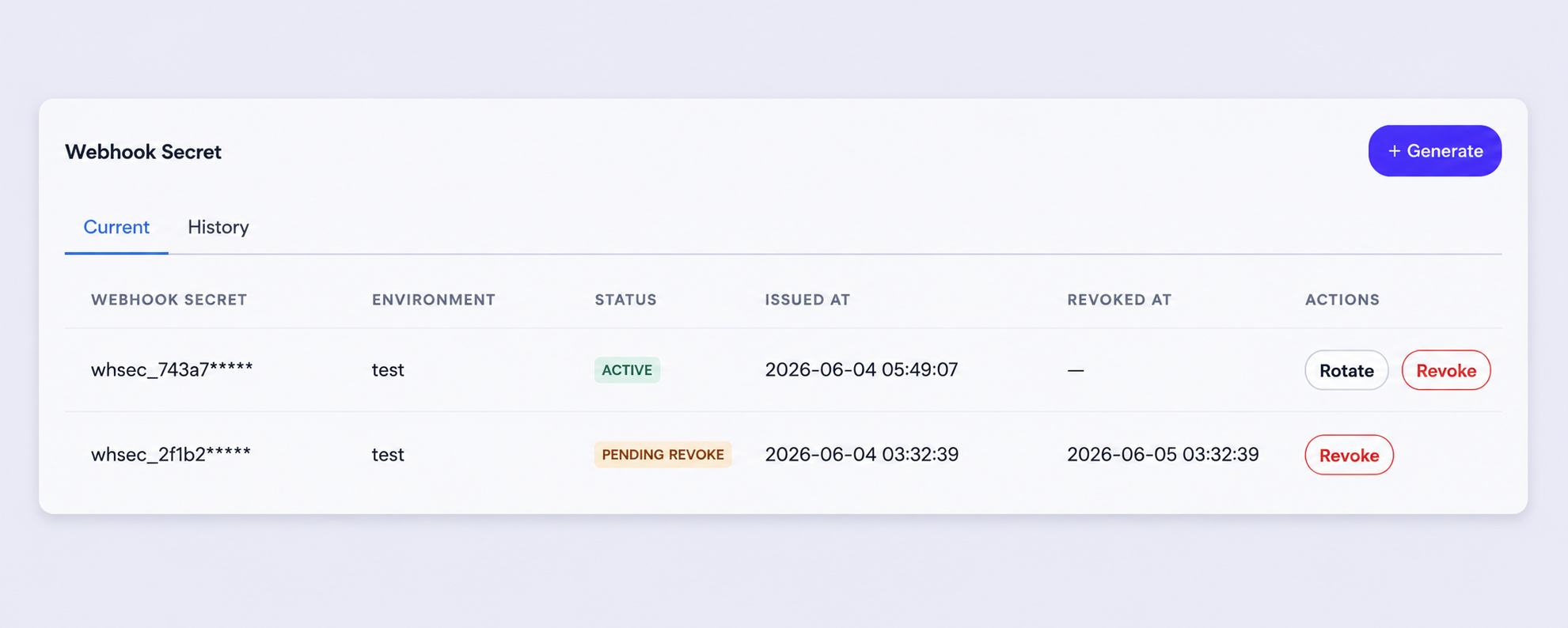
PENDING_REVOKE | Rotation in progress; included in signatures together with the new secret, and maintained until 24 hours after rotation or until it is explicitly revoked. | ✅ |
REVOKED | Revoked; no longer used for signatures. | ❌ |
Test Webhook Secret vs. Live Webhook Secret
Just as the Test API Key and Live API Key are separated, Webhook Secrets must also be issued separately for each environment.
A secret issued for the Test environment applies only to webhooks of sessions created with a Test API Key, and the Live environment is separated in the same way.
Recommended adoption order
- Issue a secret in the Test environment, apply your verification logic first, and confirm that it works.
- Issue a separate secret for the Live environment and apply it to production.
Issuing a Webhook Secret
- Log in with an account that has completed sign-up.
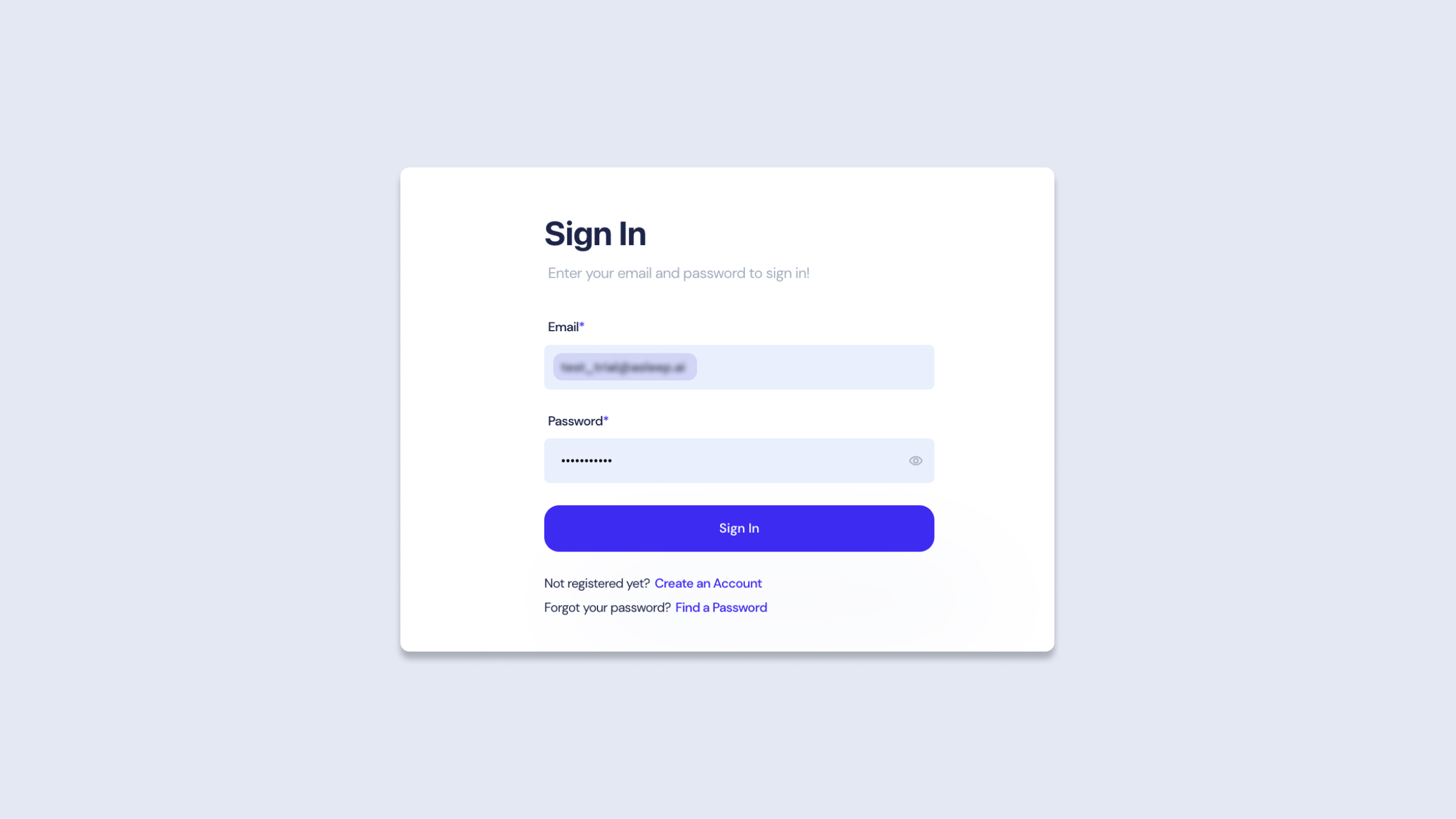
Login screen
- Click the [profile icon] at the top right of the dashboard, then click [Settings].
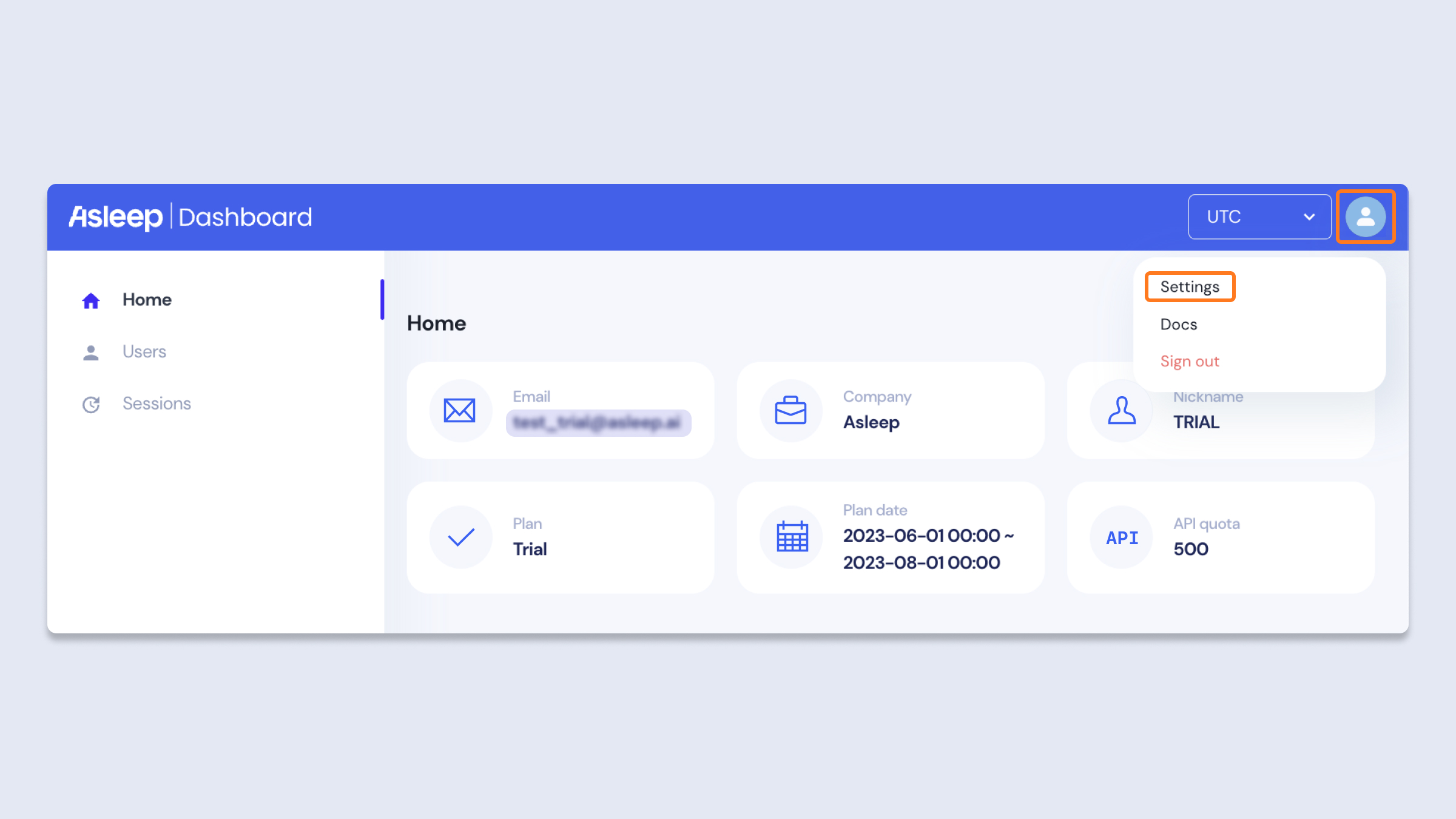
Profile icon - Settings
- Click the [Generate] button in the Webhook Secret block.
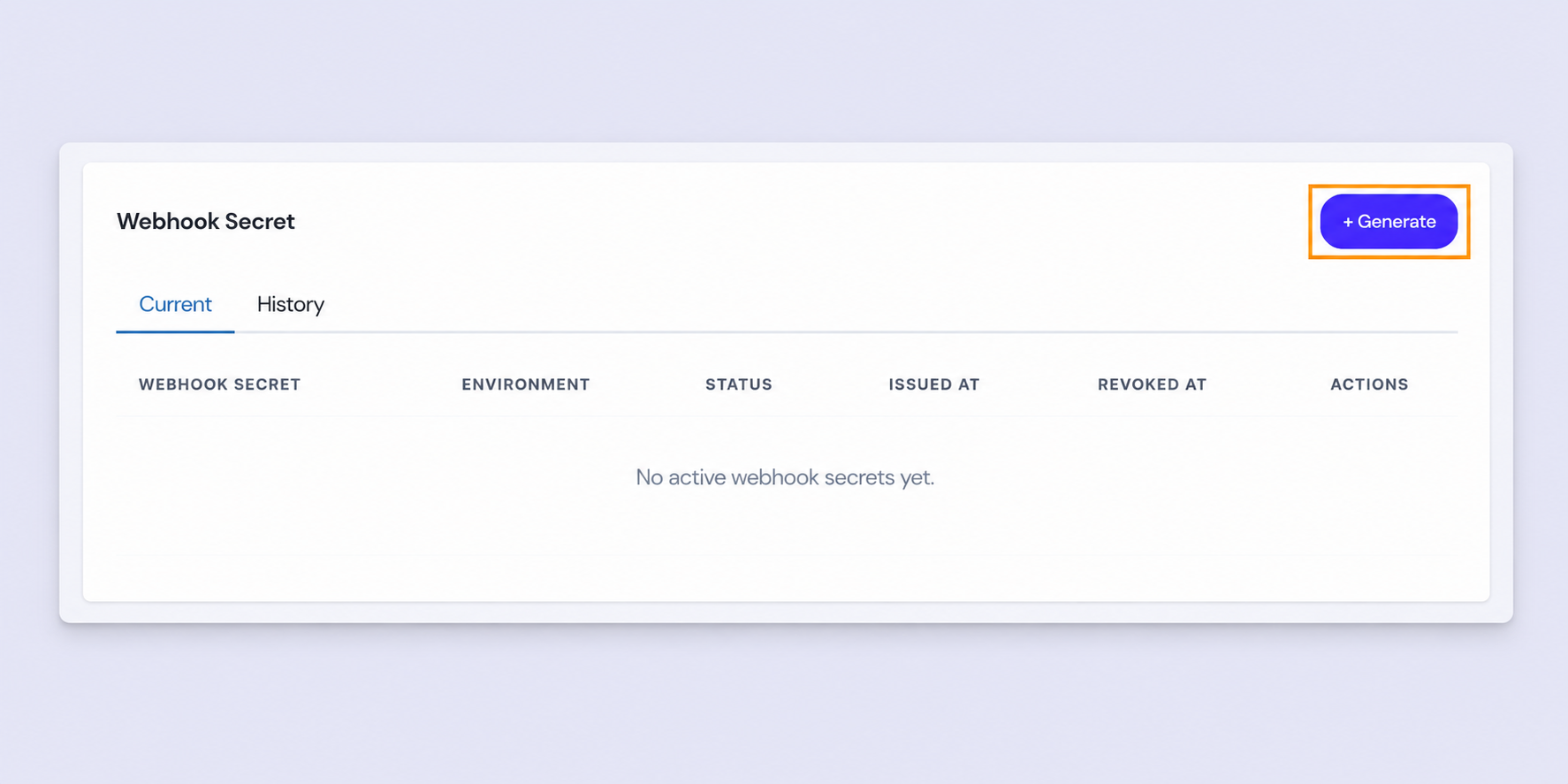
Before generating a Webhook Secret
- Select the environment to generate (live or test) and click the [Generate Secret] button.
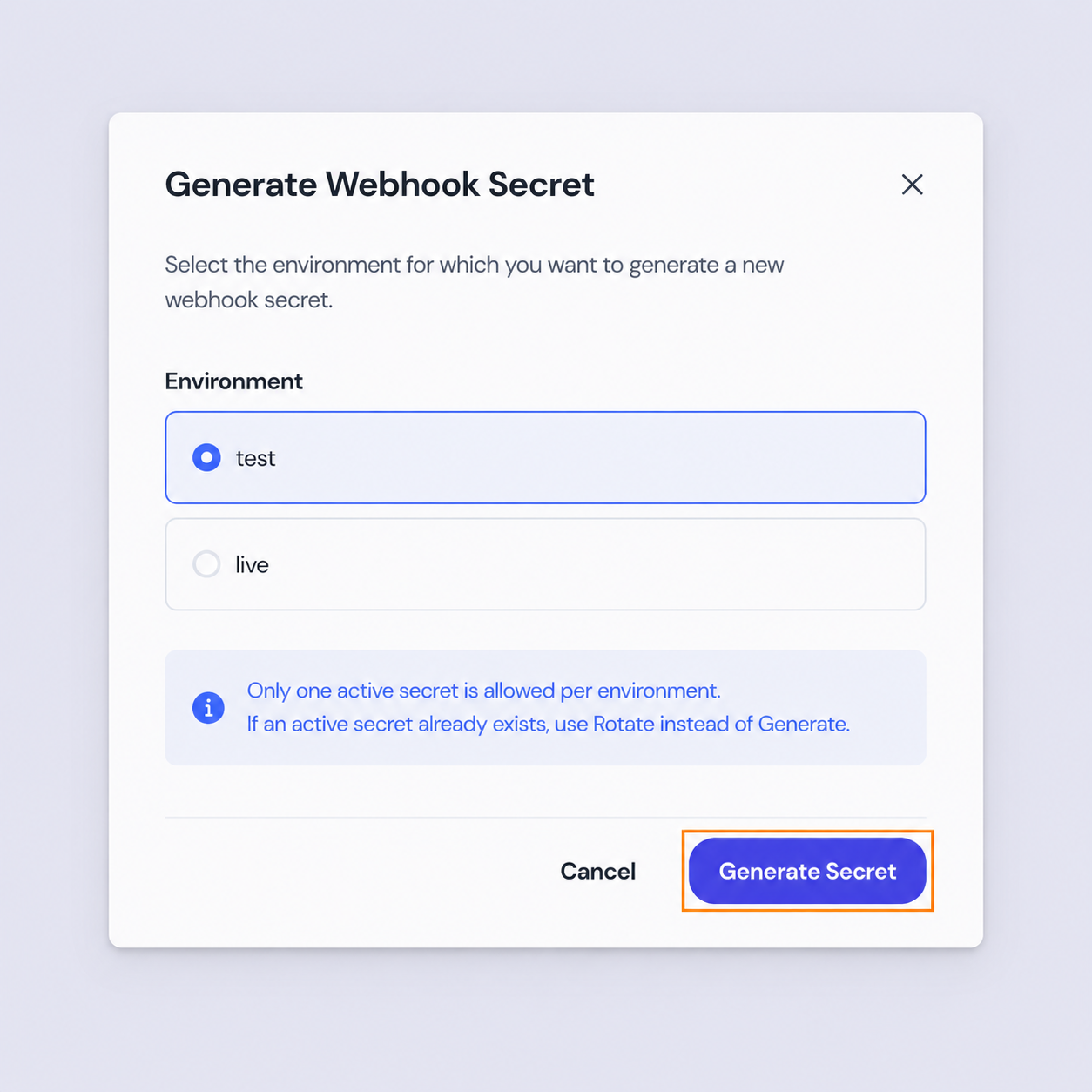
- The Webhook Secret has been generated. Copy the key value with the [Copy] button and store it.
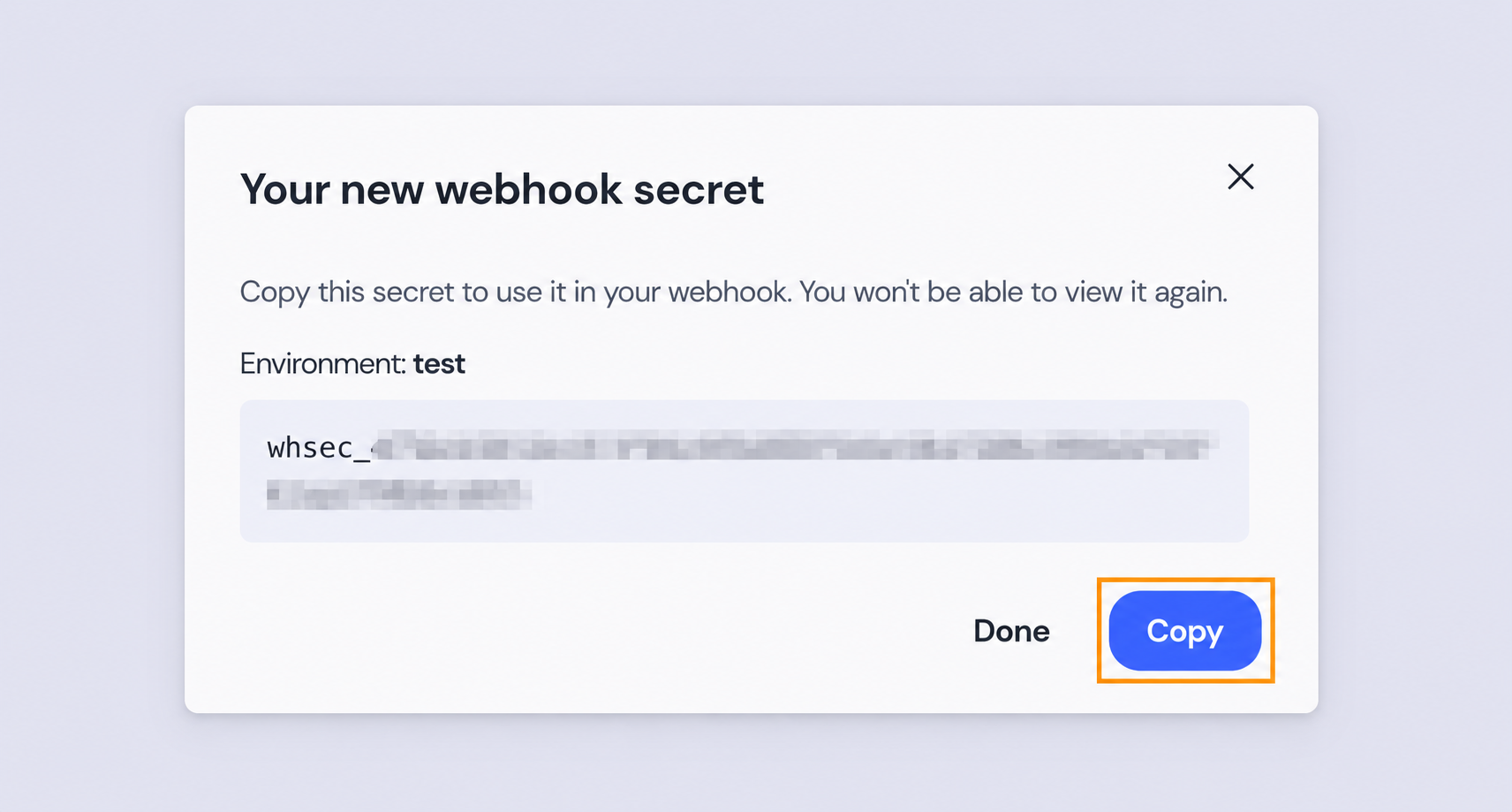
Make sure the secret is not leaked externallyIf the secret is exposed, immediately replace it with a new one via rotation and revoke the existing secret.
Rotating a Webhook Secret (Rotate)
Use this to replace the secret periodically according to your security policy, or when exposure is suspected. A grace period is provided for a zero-downtime transition.
Only one Webhook Secret rotation can be in progress at a time per environment. If a secret is already being rotated, you cannot start a new rotation.
Both secrets are valid at the same time for 24 hours after rotationFor 24 hours from the time of rotation, Asleep sends two signatures - one computed with the new secret and one with the existing secret - together in the
X-Asleep-Signatureheader, separated by a comma.Example:
X-Asleep-Signature: v1=abc123...,v1=def456...After 24 hours, the existing secret expires automatically, and webhooks sent afterwards include only the signature of the new secret. Please complete the transition on the receiving side so that verification with the new secret works within this period.
For details on verification, see the recommended rotation procedure.
- In the [Current] tab of the API Key block in Settings, click the [Rotate] button of the secret you want to rotate.
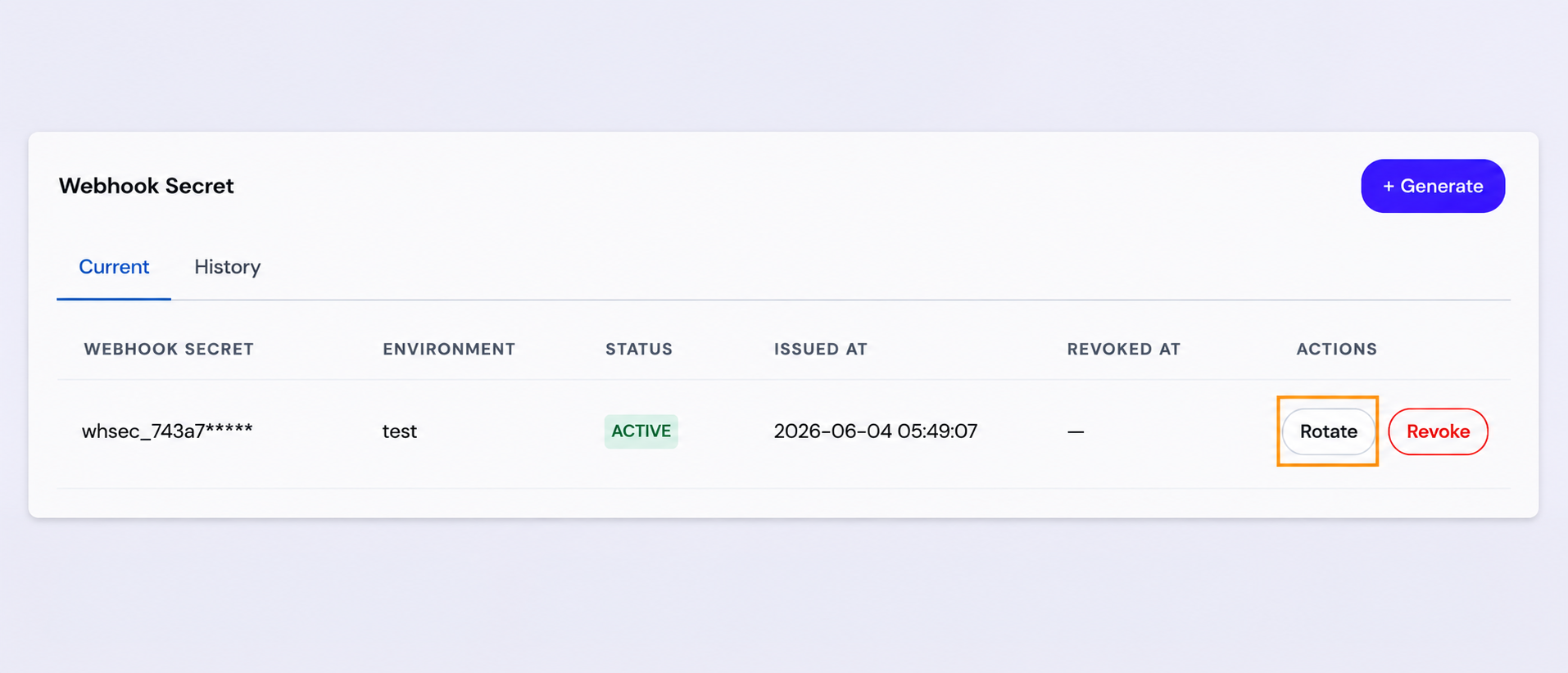
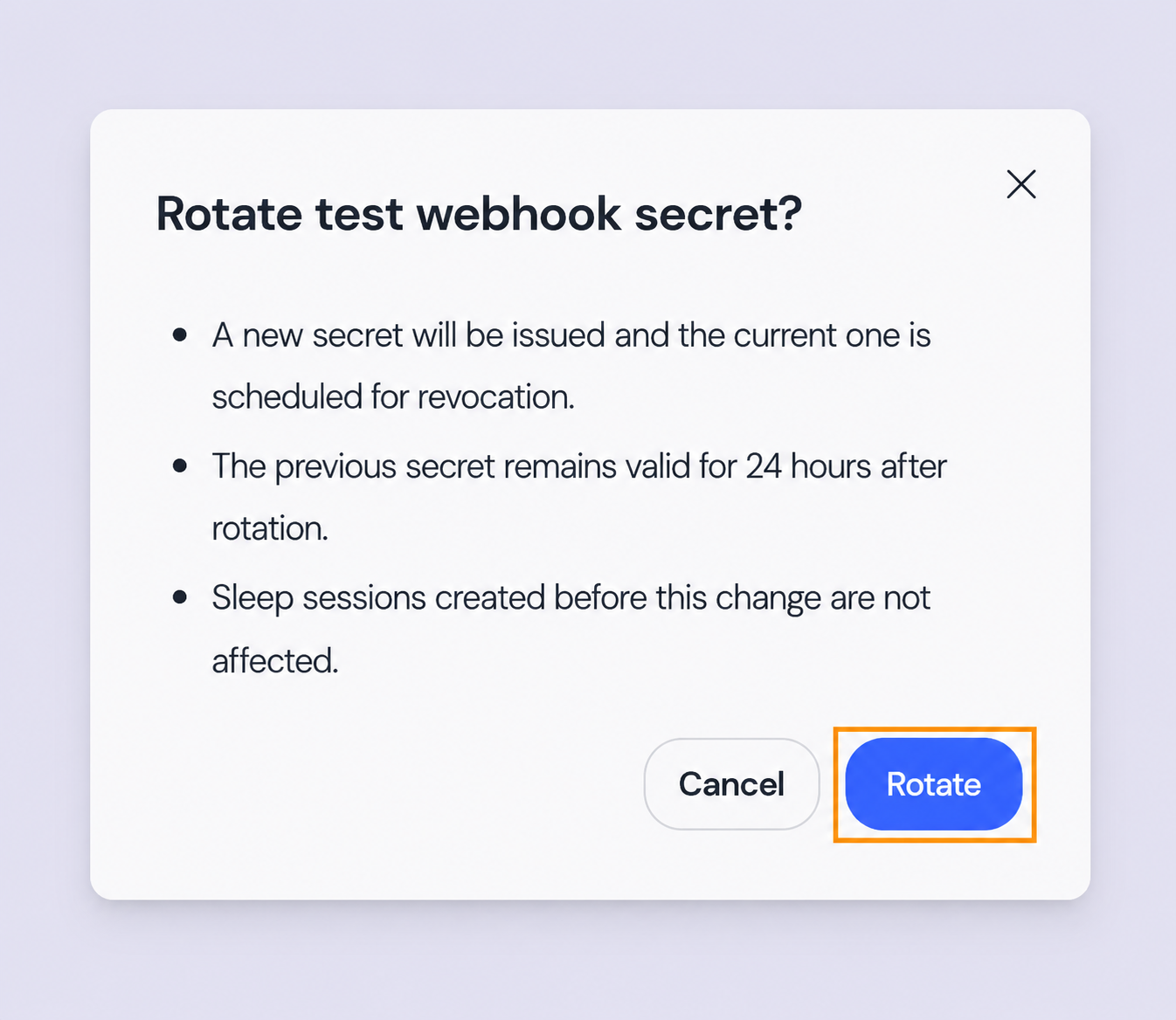
- When the confirmation dialog appears, review the notes and click the [Rotate] button.
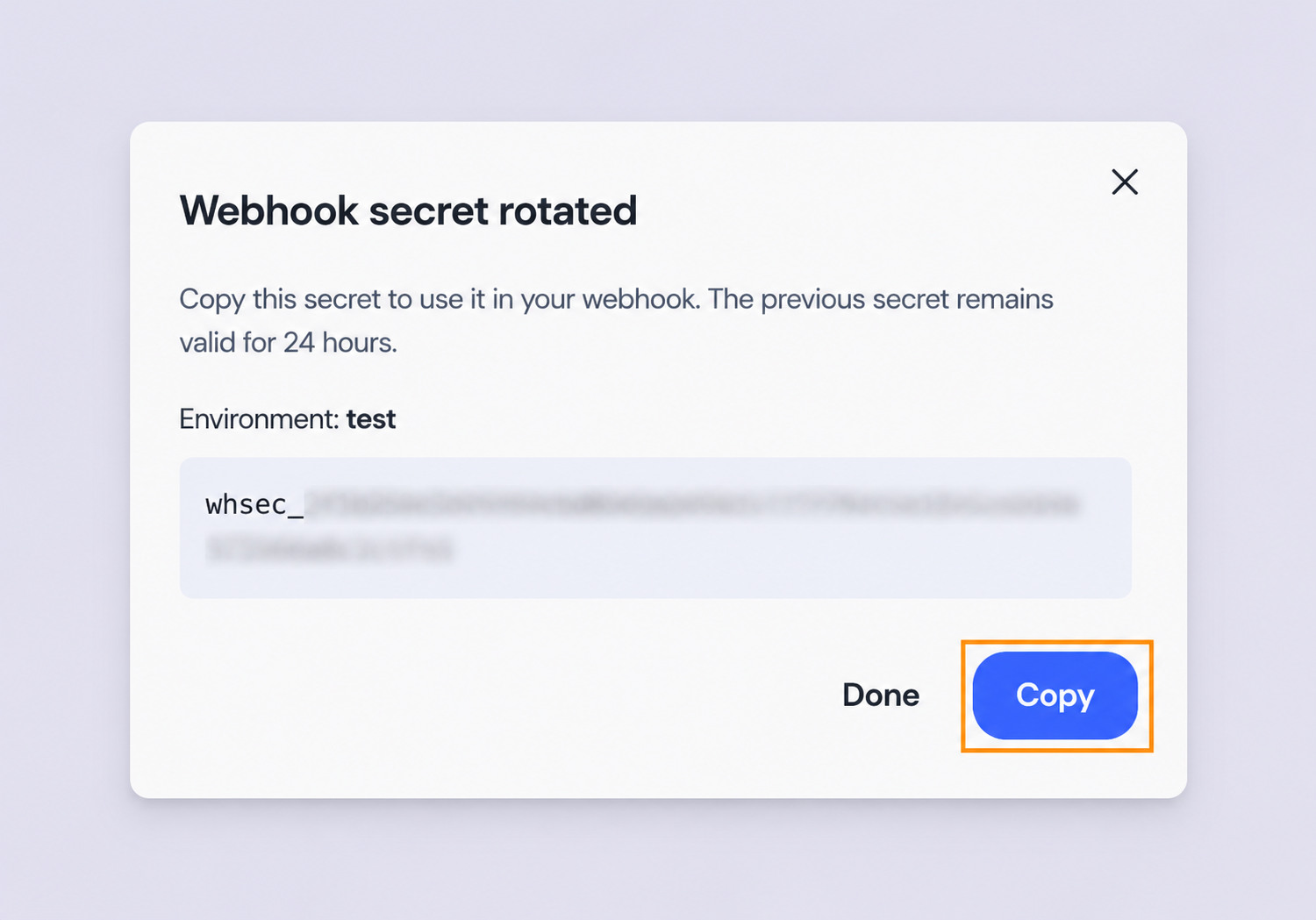
- A new Webhook Secret has been issued. Copy the key value with the [Copy] button and store it.
- The existing secret is now in the PENDING_REVOKE state and the new secret is in the ACTIVE state, both visible in the [Current] tab.
Recommended Rotation Procedure
To replace the secret without downtime, proceed in the following order.
- Issue a new secret via rotation in the dashboard. From this point, the existing secret expires automatically after 24 hours.
- Apply the new secret to the signature verification logic of your receiving server.
- Confirm that signature verification works correctly with the new secret. We recommend monitoring for a while to ensure a stable transition.
- After 24 hours, the existing secret expires automatically. If you want to revoke it sooner, you can revoke it manually in the dashboard.
Be sure to complete the receiving server transition within 24 hours.Webhooks sent after the existing secret expires are signed only with the new secret. If your receiving server is still verifying with the existing secret, all subsequent webhook verifications will fail.
Revoking a Webhook Secret (Revoke)
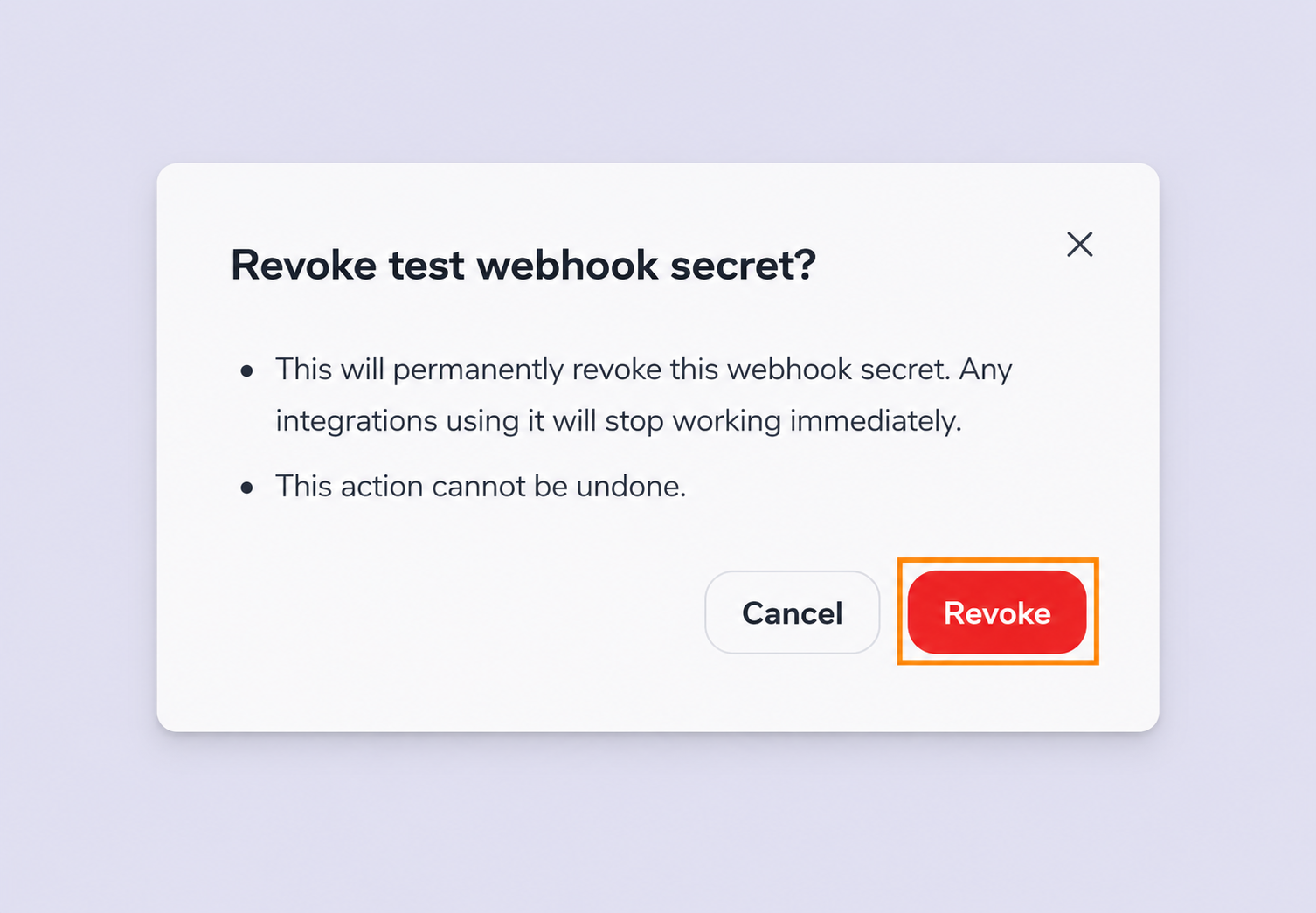
Removes a secret that is no longer used. A revoked secret is no longer used to generate signatures.
If you revoke all secrets, signatures are no longer includedIf there is no active secret at all, the
X-Asleep-SignatureandX-Asleep-Timestampheaders are excluded from outgoing webhook requests. If you want to keep using verification, be sure to issue a new secret first before revoking.
- In the [Current] tab of the API Key block in Settings, click the [Revoke] button of the secret you want to revoke.
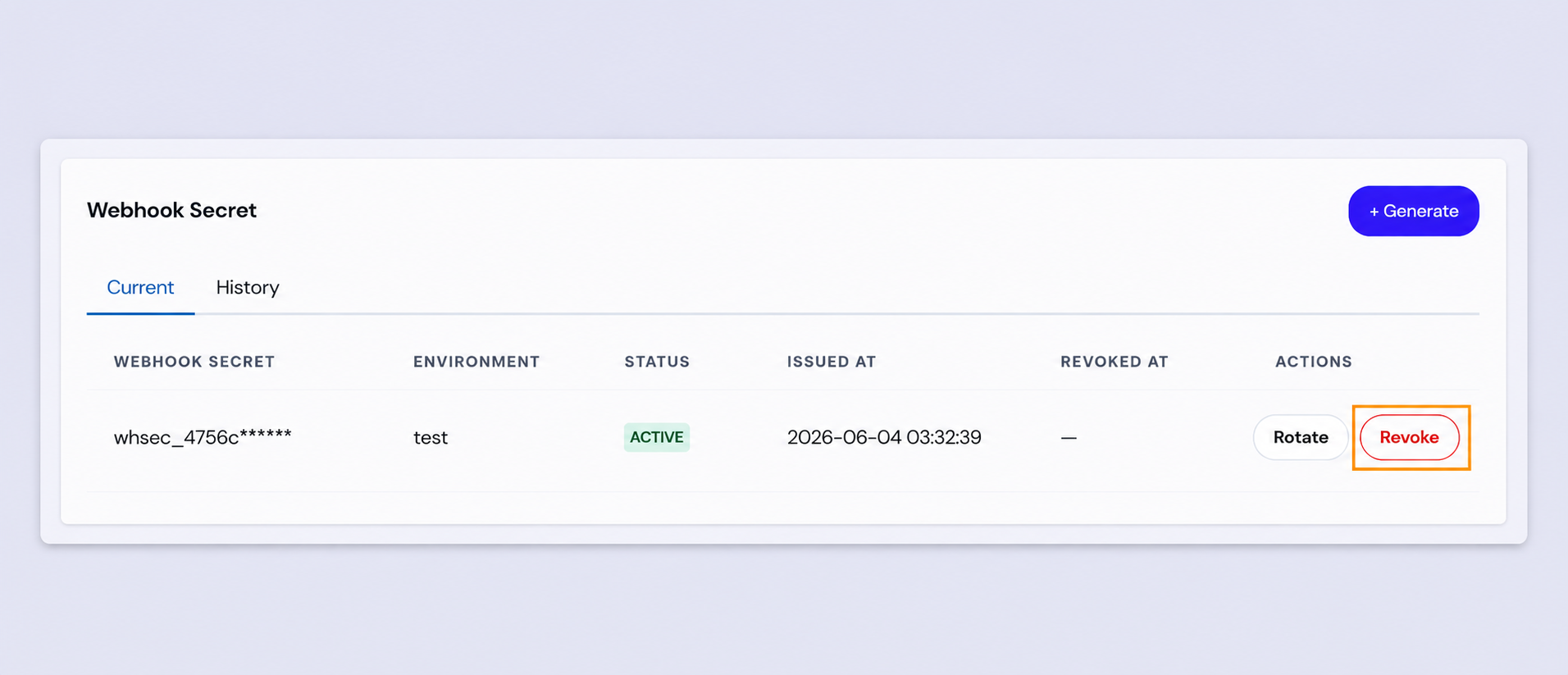
- When the confirmation dialog appears, review the notes and click the [Revoke] button.
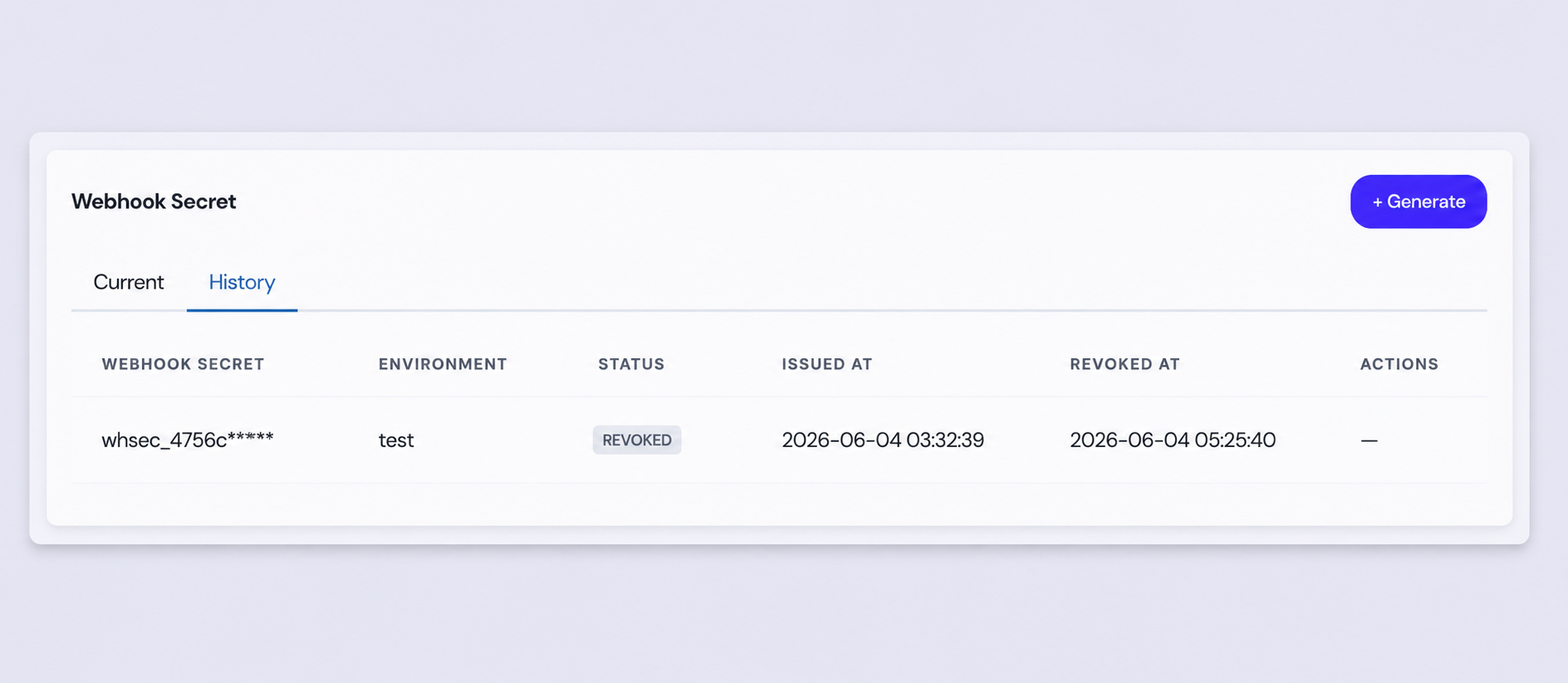
- The revoked secret is immediately no longer used for signatures, and you can check its issuance date and revocation date in the [History] tab.
Updated about 2 months ago